How to Make Captioned Sample Clips for TikTok and Instagram (Quota Mini)
Dialogue clips with burned-in captions hit twice as hard on social. Here is how to cut, caption, and export MP4 pad exports in Quota Mini for TikTok, Reels, and Shorts.
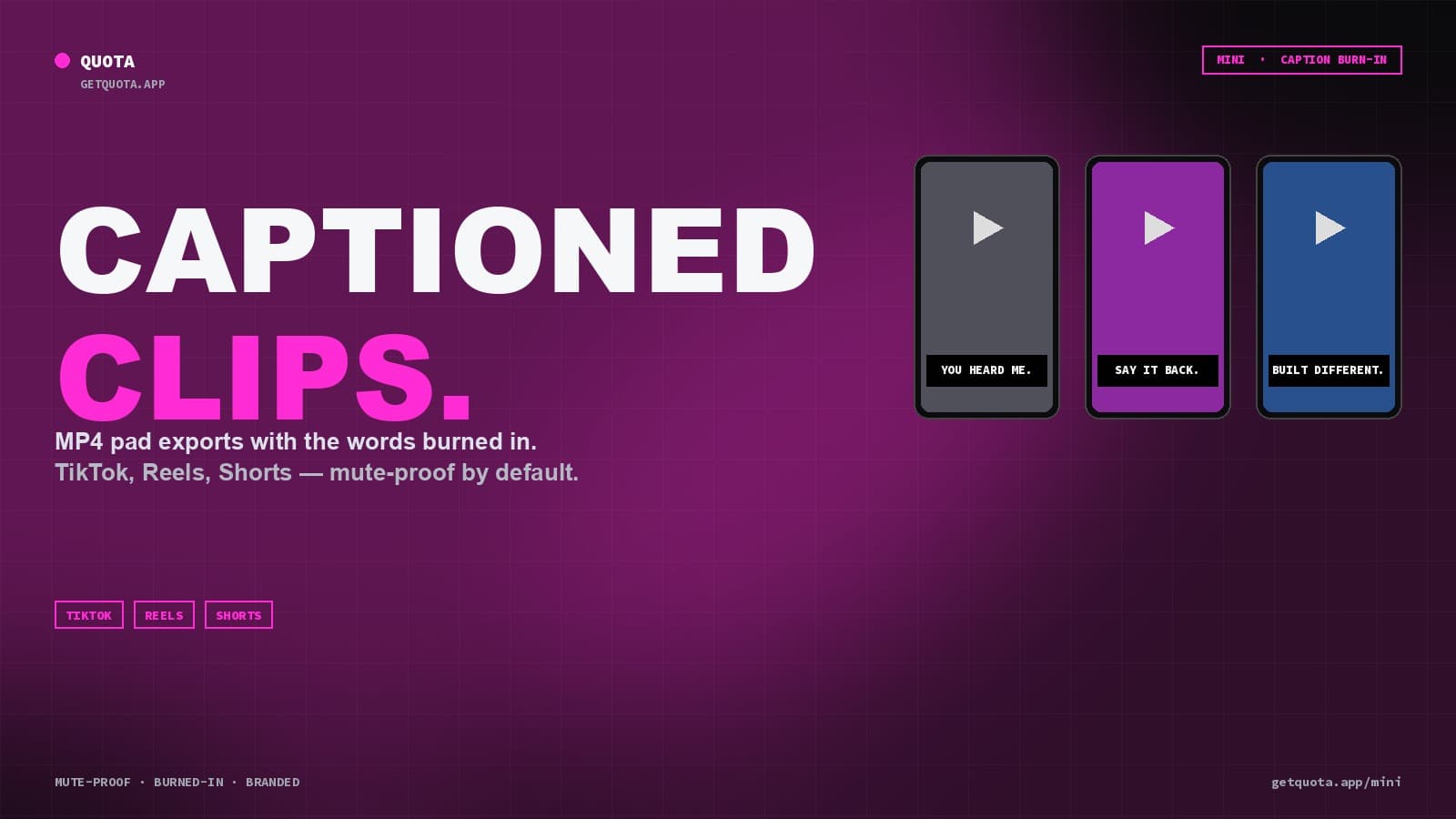
Short-form social video rewards audio you can still hear when the phone is muted. Captions on dialogue clips are doing a lot of the work — they turn a 3-second sample into a shareable quote card, they boost retention, and they make the content legible in a feed where most viewers scroll with the sound off.
This guide covers how to cut captioned MP4 sample clips in Quota Mini and export them ready for TikTok, Instagram Reels, YouTube Shorts, or wherever else.
What you need
- Quota Mini (macOS or Windows) — free 30-day trial
- A video or audio source with the spoken moment you want to clip (movie, podcast, interview, stand-up set, anything)
Step 1: Load the source
Drop the video file into Mini. It'll transcribe locally using Whisper — no upload. Once it's done, you have the full transcript timed to the video.
Step 2: Find the line and highlight it
Use search or scroll through the transcript. When you spot the line, highlight the words. The boundaries are set at word level automatically, so the clip starts and ends where you expect.
Click an empty pad to assign.
Step 3: Turn on caption burn-in
Before exporting, open the pad's export options and enable Caption burn-in. Mini renders the transcript text directly into the MP4 video — not as a subtitle track, but literally baked into the pixels.
A few things you can tune:
- Font and size — scale the captions to feel right for vertical vs. horizontal video
- Color and outline — match your brand or keep it classic white-with-black-outline for max legibility
- Position — bottom-center is standard, but center-screen works for shorter punchline clips
Step 4: Export the MP4
Hit export. Mini renders a single MP4 file with:
- The original video frame
- Clean audio from the highlighted section (optionally with Demucs vocal isolation applied)
- Burned-in captions synced to the speech
The file drops into your output folder ready to upload. No re-encoding in another app, no subtitle track merging, nothing.
Step 5: Post or repurpose
The MP4 is a finished social clip. For TikTok and Reels, you can crop or add your intro in CapCut / Premiere if you want, but the caption and audio are already locked in. For YouTube Shorts, upload as-is.
Why burn-in captions matter
- Platform captions can fail or lag. TikTok's auto-captions are good but not perfect, and they don't always animate over the clip the way you want. Burned-in captions are pixels; they never misfire.
- Legibility in grid previews. Before a viewer taps in, they see a thumbnail. If the caption is burned into the video, they already know what it says from the preview alone.
- Cross-platform consistency. Same caption style on TikTok, Reels, Shorts, X, LinkedIn — no platform-specific subtitle tracks to maintain.
A few useful patterns
- Quote-of-the-day accounts. Chop a single great line per day from a podcast or movie, caption it, post. Low-effort, high-consistency.
- Multi-caption carousels. Export three or four related lines from the same source, post as an Instagram carousel. Each slide is its own captioned MP4.
- B-roll over dialogue. Use Mini's MP4 export for the caption + audio, then drop it into a video editor and replace the visuals with your own b-roll. The captions and audio stay synced.
Get started
Start a 30-day free trial of Quota Mini and cut your first captioned clip in under five minutes.